
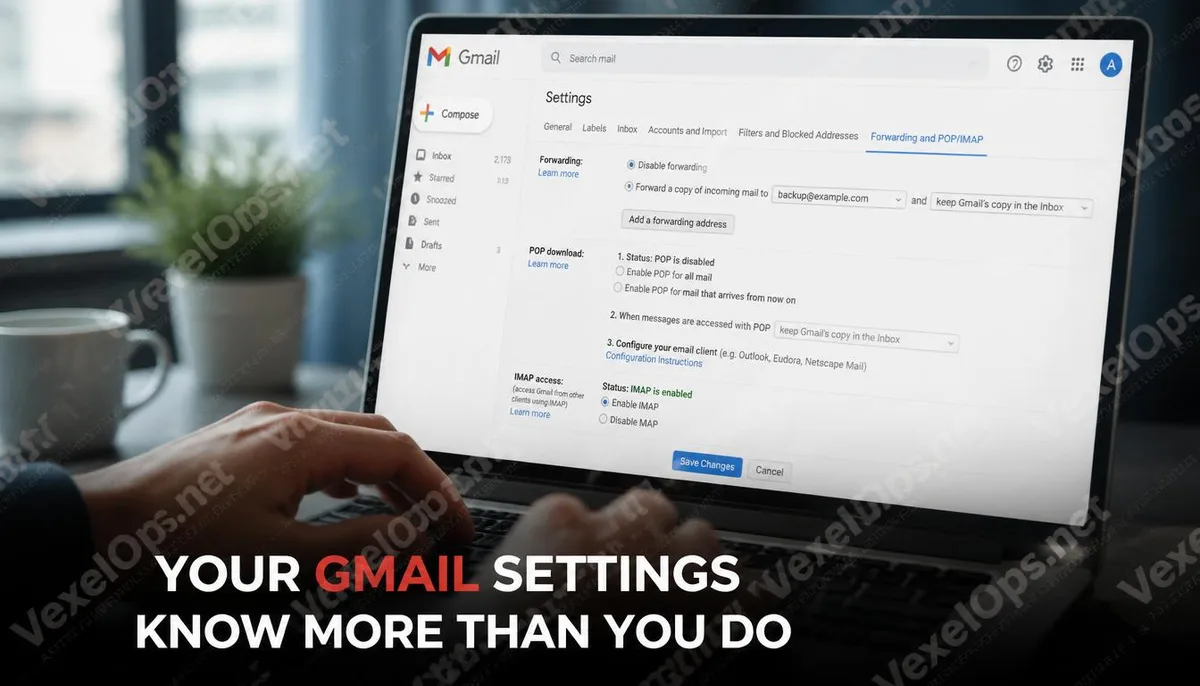
Attackers Don't Need to Constantly Monitor Your Inbox, Just Set a Rule
After an account is compromised, many attackers don’t make immediate obvious moves. They won’t delete emails en masse or change the password for you to notice; instead, they quietly add an automatic forwarding rule in Gmail settings. From that moment on, all new messages you receive will be silently copied and sent to the designated inbox while you're reading them. Bank transaction notifications, account verification codes, important contracts, and contact information continue to flow out without your knowledge. This method is effective because it does not trigger any obvious alarms. Emails still arrive in your inbox normally, the account can still be logged into without issues, and everything appears as it usually does until you accidentally check the settings page, where you may discover that hidden rule.
The Areas in Gmail Settings that Need Immediate Attention
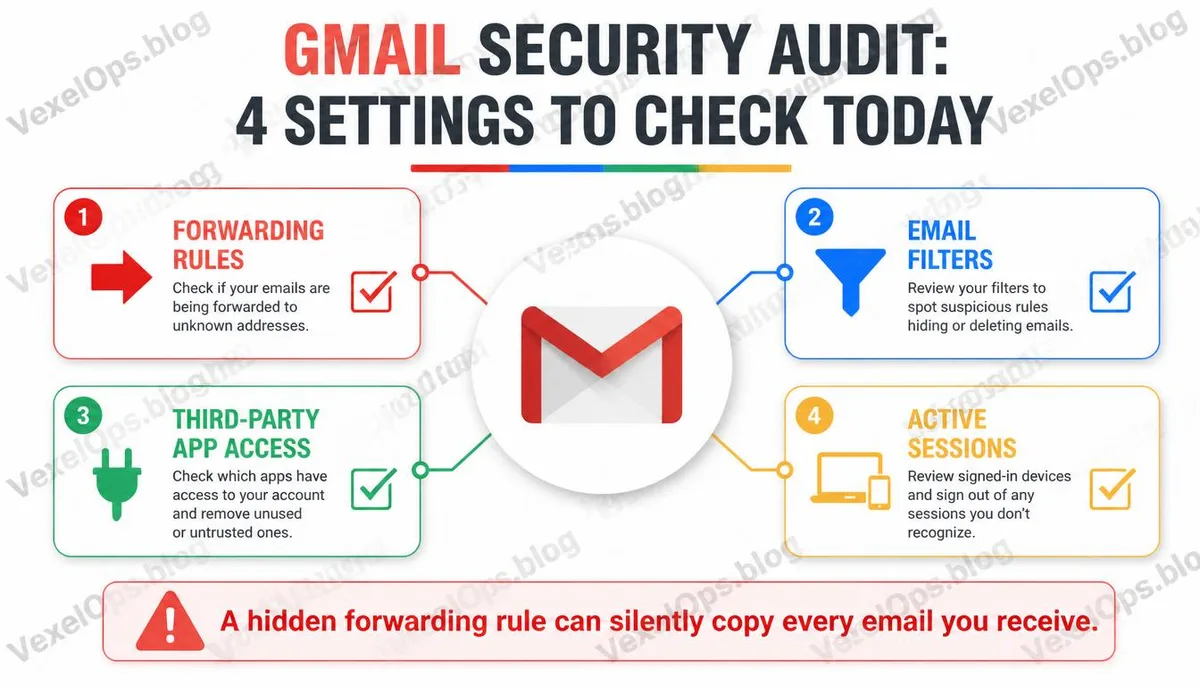
Automatic Forwarding Settings Go to the Gmail settings page, select the Forwarding and POP/IMAP tab, and check the status of forwarding settings. If you see an unfamiliar email address designated for forwarding, you need to disable and delete that rule immediately. Normally, this area should be empty, or it should only contain addresses you have set. Email Filters Filters are a powerful function in Gmail that is rarely actively used by ordinary users. Attackers sometimes set up filters that automatically mark specific types of emails as read, archive them, or delete them directly, preventing you from seeing important security notifications or verification emails. To check, go to the Filters and Blocked Addresses tab in Gmail settings and see if there are any filter rules you don’t remember setting, particularly those that delete or archive emails directly. Authorized Third-Party Applications Many users log in to various services using their Google account or grant third-party apps access to Gmail. Some of these authorizations are quite broad, including reading all emails, sending emails, and even managing inbox settings. To confirm: 1. Go to myaccount.google.com 2.
Sign-In Devices and Gmail Activity Log
In the bottom right corner of the Gmail inbox page, there's a less than obvious function that allows you to check account activity. Clicking on it reveals a list of devices that have accessed this Gmail inbox recently, including access times, device types, and approximate location information. If you see unfamiliar devices or locations showing up on this list, you can directly choose to log out from all other web sessions, forcing the Gmail sign-in status on all other devices to become invalid. This action will not change the password; if you suspect your account has been compromised, you will still need to change your password and confirm two-factor authentication.
IMAP and POP3 Access Settings
Gmail supports access to inbox content through IMAP and POP3 protocols. This function is used when managing Gmail through Outlook, Apple Mail, or other email software, but if you are not using such software, these two features do not need to be enabled by default. If you find that IMAP or POP3 is enabled on the settings page, but you are not using any third-party email clients, consider turning off these options to reduce external access to your inbox.
Next Steps After Confirming Settings
After completing the above checks, if everything looks normal, it means that your Gmail inbox is relatively secure at the setting level. If you discover any anomalies during the process, such as unfamiliar forwarding addresses, unknown filter rules, or strange third-party app authorizations, it is recommended to change your password and ensure that two-factor authentication for your Google account is enabled. If you discover that the anomalies exceed expectations or if you are uncertain about the risk level represented by certain authorization records, VexelOps can assist you in clarifying the impact of the event and provide subsequent security verification steps.
Common FAQs About Gmail Security Settings
If I Discover an Unknown Forwarding Rule, Does It Mean My Account Has Been Hacked?
Finding an unknown forwarding rule is a serious warning sign but does not necessarily mean your account has been fully compromised. This rule may be something you forgot you set at some point, or it may have been automatically established after granting access to a third-party service, or it could indeed be set by an attacker after compromising your account. Regardless of the reason, after discovering an unknown forwarding rule, the correct sequence of action is to disable and delete that rule first, then check for recent login activity of the account to confirm if there are any signs of unauthorized access, change the account password, and verify that the two-factor authentication setting is complete. If there are unfamiliar devices or locations on the login activity log, then it’s quite likely that the account has indeed had unauthorized access and requires further action.
Does Enabling Two-Factor Authentication Eliminate the Risk of Forwarding Rules Being Set?
Enabling two-factor authentication significantly increases the barrier to unauthorized logins, but it only protects the login action itself, not the possibility of account settings being changed. If an attacker has already logged in—whether before two-factor authentication was enabled or by circumventing it—they can still modify account settings after logging in, including adding forwarding rules. Therefore, two-factor authentication and regularly checking account settings address different layers of security risk and should both be practiced for more comprehensive protection.
What Can Third-Party Applications Do If They Are Granted Access to Gmail?
It depends on the scope of permissions you grant. Third-party authorizations in Gmail come in different access levels, ranging from being able to read only specific labeled emails, to potentially having full permissions to read all emails, send emails, and manage inbox settings. When you use a service and authorize it through your Google account, the authorization screen usually displays the scope of access that the application is requesting, but in practice, few people take the time to read that description carefully. Regularly checking the list of authorized applications on your Google account’s security page is the only way to know which services currently have access to your inbox, as Google does not proactively notify you of these applications' access actions after authorization.
Do the Same Check Procedures Apply If I Use a Corporate Gmail Account Through Google Workspace?
Most of the checking procedures are the same, but Google Workspace accounts may have certain settings controlled by administrative policies. For example, the company administrator may have restricted certain forwarding settings at a backend level or may have additional review mechanisms for authorizing third-party applications. If you are using a Google Workspace account provided by your company, some settings may not be able to be modified independently and need to be checked through your company’s IT department or system administrator. Personal Gmail accounts are not subject to such restrictions and can be managed entirely by the account owner.
Will My Original Emails Still Be in My Inbox If They Are Forwarded to an External Inbox?
The mechanism of forwarding rules operates by copying an email and sending it to the designated external inbox. The original emails will still reside in your Gmail inbox and will not disappear due to forwarding. This is precisely why such attacks can be particularly hard to detect; everything appears to be normal, emails are delivered normally, and you can read them as usual, but simultaneously, a copy is being sent to the attacker. The only way to discover this is by actively checking the settings page to confirm the status of forwarding rules.
One Key Takeaway: The most overlooked aspect of Gmail account security is not the password, but the areas in the settings page that are rarely actively reviewed. An email forwarding rule or an expired third-party authorization can lead to content leaking from your inbox, even if the password is completely correct.