
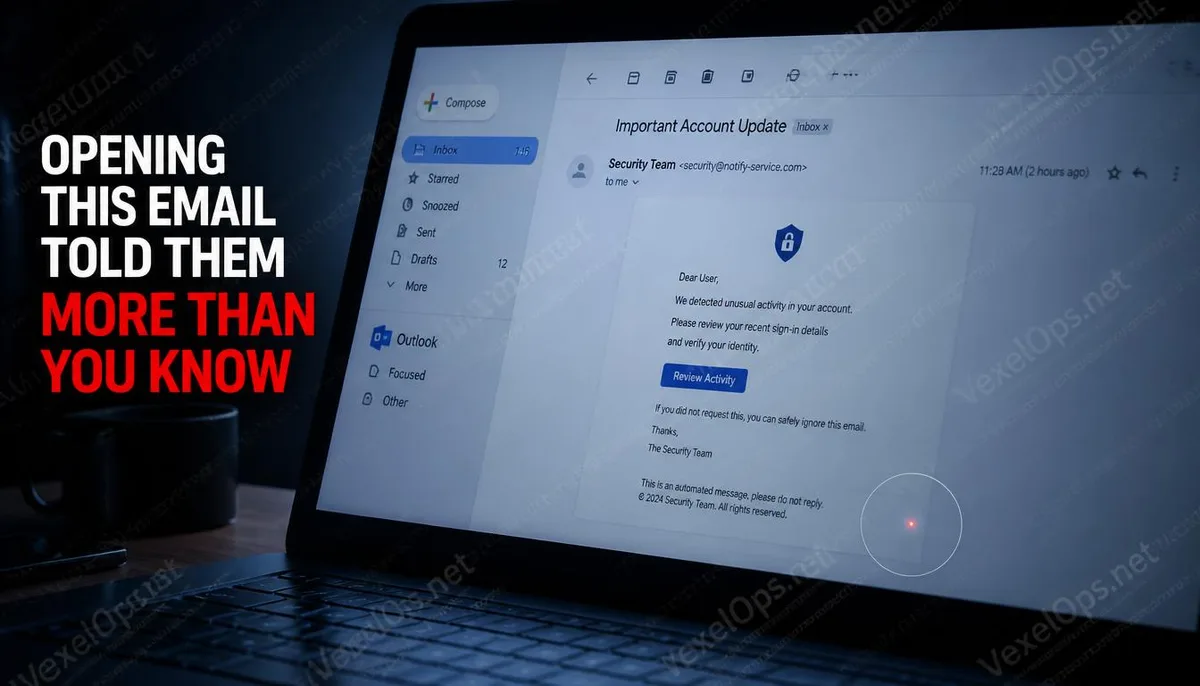
An Email That Seems Ordinary Might Know More About You Than You Think
Imagine receiving a newsletter or a business email, you open it for a few seconds, lose interest, and close it. During this process, you think nothing happens. But at the instant you opened that email, the sender's server may have recorded the exact time you opened it, the type of device you used, and approximate information about your location. This whole process occurs in milliseconds, completely silently, and you receive no notifications. This is not some complicated hacking technique; rather, it's a basic technology that has been widely used in marketing, business tracking, and even personal surveillance, known as tracking pixels.
How Tracking Pixels Work
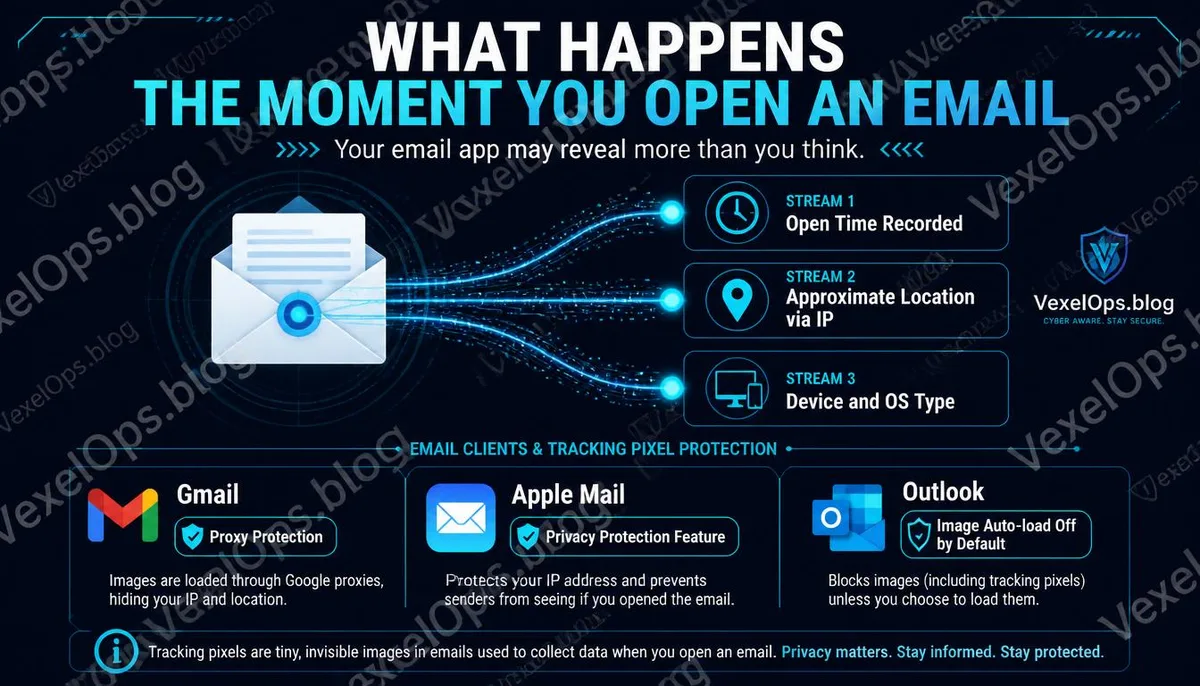
A tracking pixel is a tiny image file, often a transparent 1×1 pixel image, embedded in the HTML content of an email. When you open an email containing a tracking pixel, your email client requests to download that image from the sender's server to display the email content. At the moment this request occurs, the sender's server records the following information: - The time the request occurs, which is when you opened the email - The IP address that made the request, which can approximate your geographic location - The type and version of the email client you are using - The operating system of the device you are using This information is valuable data for marketers, but the same technology, in different contexts, can also be used to track specific individuals' behavior patterns, including when they tend to read emails and where they often check their emails.
What Information Lies in Email Headers?
In addition to tracking pixels, the header information of each email contains technical details about the transmission process. The email header records every server the email passes through from sending to delivery, including timestamps and the IP addresses of those servers. For emails sent from corporate inboxes or self-hosted servers, the headers may contain internal network information, including the private IP address or hostname of the sending device. This information might not be readily checked by ordinary recipients, but for those intending to gather information, the email header is a freely available data source. In Gmail, you can view the complete email header by opening any email and selecting ‘Show Original’ in the more options.
Handling of Tracking Pixels in Gmail and Outlook
Mainstream email services have responded to this issue to varying degrees. Gmail by default proxies external images, meaning when you open an email containing external images, the request to load the image goes through Google’s servers first before being sent to the sender. This way, the IP address recorded by the sender is that of Google’s server, not your actual location. This mechanism provides some level of protection for location information of tracking pixels, but the information about the opening time may still be recorded. Apple Mail introduced mail privacy protection features after iOS 15, allowing emails to load in the background and triggering tracking pixels preemptively, making it impossible for the sender to accurately determine when you truly opened the email and the actual time of opening. Outlook doesn’t automatically load external images by default; users must manually click to load them. This design itself provides a level of protection against tracking pixels, but if you set it to automatically display images, the protective effect diminishes.
Common Questions About Email Privacy
How to Confirm if an Email Contains Tracking Pixels?
The most direct way is to use specialized tracking pixel detection tools, such as the browser extension PixelBlock (for Chrome with Gmail), or the built-in external image blocking feature of your email client. Another simple way to judge is to open the email while disconnected from the internet; if some images in the email fail to display, it indicates those images are loaded from external servers, which may include tracking pixels. This method cannot confirm completely but can serve as a preliminary judgment reference.
When I Send an Email, Can the Recipient Know My Real IP Address?
It depends on how you send the email. Emails sent through major services like Gmail, Outlook, or Yahoo Mail typically do not include the IP address of your device in the headers, showing the address of the service provider's server instead. However, if you are using a self-hosted email server or some older email client software, the headers might contain the IP information of the sending device, allowing the recipient to potentially see your network address.
Can Using Encrypted Email Services (like ProtonMail) Solve These Issues?
Encrypted email services like ProtonMail offer stronger protection in transmission encryption and server-side privacy than mainstream services, but the issue of tracking pixels fundamentally lies in how the email content is presented, not in the transmission process. Even when using an encrypted email service, if an email contains tracking pixels, opening the email may still trigger tracking requests. ProtonMail has certain protection mechanisms for loading external images, but the basic protective measure is still to disable automatic loading of external images in the email client settings.
One Key Takeaway: The privacy risk of emails lies not only in the content being read, but also in the act of opening the email itself potentially being recorded. Disabling automatic loading of external images in the email client is the most direct way to reduce the risk of being tracked.