
Your Computer Runs Programs You Don’t Know About Every Time It Boots
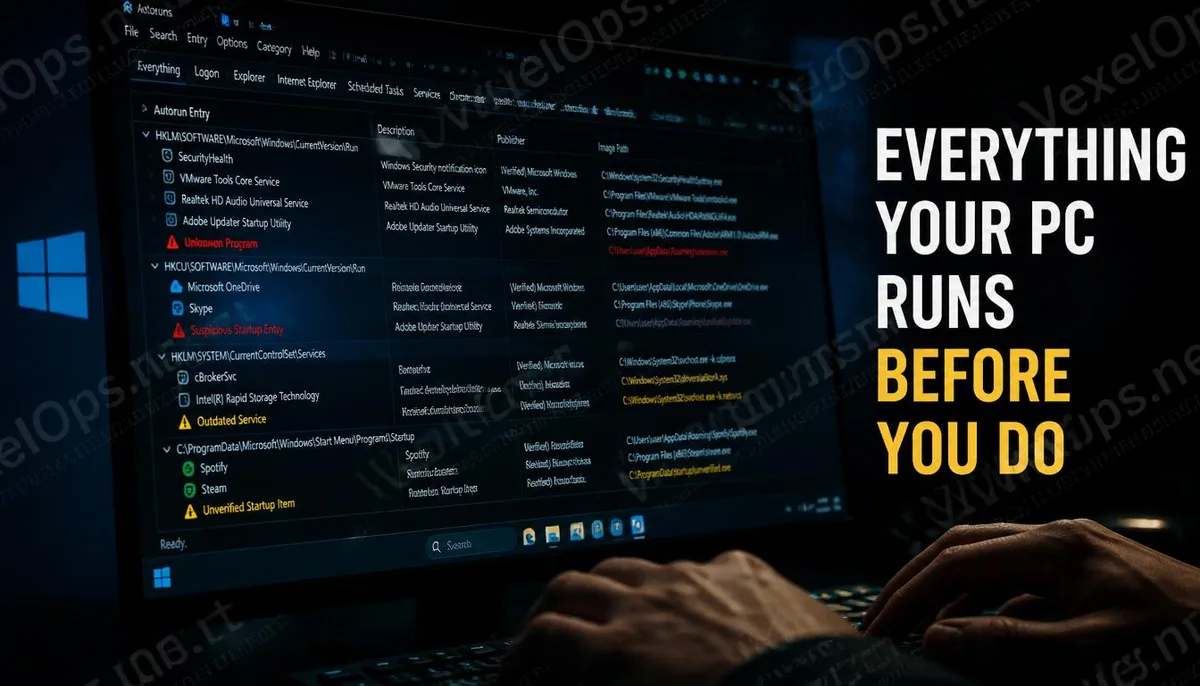
Most Windows users perceive booting as pressing the power button, waiting for the desktop to appear, and then starting to work. However, during that wait time, Windows is actually executing a list that includes all the programs, services, drivers, and system components that are set to start automatically. This list is much more complicated than you might think. It is dispersed across multiple locations in the Windows registry, various levels of system folders, and scheduled task configuration files. Normal software installations add themselves to this list, as do malicious programs, often choosing the locations that are least likely to be noticed by the average user. What Autoruns does is lay out this entire list for you, allowing you to see for the first time exactly what your computer executes on boot.
Why Task Manager and Regular Antivirus Software Aren’t Enough
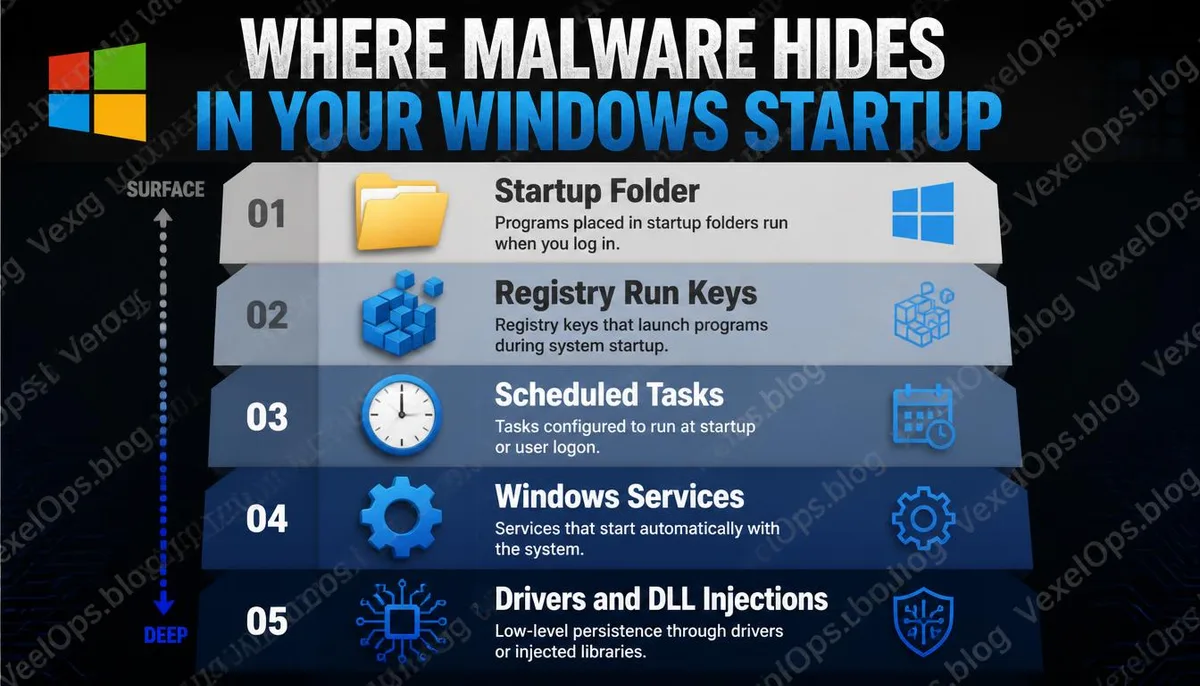
The built-in Task Manager in Windows has a Startup tab that displays some of the automatic startup programs, but this is just the tip of the iceberg. The complete list of startup locations is spread over dozens of different areas in the system, and what Task Manager shows is merely the surface layer. Malware authors are well aware of this. They choose to inject their code into drivers, browser extensions, scheduled tasks, or disguise themselves as system services; these locations will not appear in the Task Manager's startup list. Antivirus software can detect known malware signatures, but for targeted attacks or newer types of malware, the signature database may not keep up in real-time. Autoruns provides another angle; it does not rely on signature matching but instead lets you see all the automated startup items directly, allowing you or professionals to determine which are normal and which shouldn't be present.
What Hidden Locations Can Autoruns Reveal?
The startup locations monitored by this tool exceed most people's imagination and include:
- Multiple Run and RunOnce keys in the Windows registry, which are the most common automatic startup locations
- The Startup folder in the Start menu, including both user-level and system-level
- Windows scheduled tasks that can be set to execute programs at specific times or when specific events trigger
- Browser extensions and add-ons covering Chrome, Firefox, Edge, and Internet Explorer
- System services and drivers, the layer closest to the operating system core and the hardest to detect
- DLL injection points that allow code to be loaded into the execution space of other normal programs
- Winlogon and LSA related items that trigger during user login processes
This list alone illustrates why relying solely on Task Manager fails to provide the full picture.
In What Scenarios Do Security Professionals Use Autoruns?
In actual cybersecurity work, Autoruns appears quite frequently. When a device is suspected of being infected with malware, accessing Autoruns is usually one of the first few actions taken. It quickly shows which items lack digital signature verification, which file path locations are anomalous, or which items use deceptive methods by mimicking system program names. Autoruns also provides a useful feature that submits each automatic startup item to VirusTotal for scanning, enabling you to see the threat assessment result directly within the tool interface, significantly shortening the time needed for manual checks. For regular users, the most direct use of Autoruns is when the computer experiences unexplained slowdowns, abnormal network traffic, or antivirus warnings, serving as the first tool to confirm whether the boot environment is clean. If suspicious items are found during use, VexelOps can assist in analyzing the risk of these items and provide subsequent handling recommendations.
Common Questions About Autoruns
With So Many Items Displayed in Autoruns, How Do I Know Which Are Normal?
Autoruns offers several convenient filtering features. The most useful is the option to hide items with verified Microsoft signatures, which significantly reduces the number of items on your screen, allowing you to focus on those without digital signatures or those that cannot be verified. Furthermore, any item displayed with a red or yellow background indicates that the program file cannot be found or has been deleted, but the record still exists in the registry, which usually warrants further confirmation.
Will Disabling an Item with Autoruns Cause Problems on My Computer?
Disabling items in Autoruns is done by unchecking the box rather than directly deleting them, so this action can be reverted. After disabling a startup item, restart the computer and observe whether there are any abnormalities in its operation. If there are no issues, that item is likely not necessary for your daily use. Before performing any action on uncertain items, it is recommended to search for the item's name to understand its function and origin before deciding to disable it.
How Should I Use Autoruns in Conjunction with Process Monitor?
The two tools tackle different but complementary angles. Autoruns helps you clarify which automated execution items are set during system boot, providing static list analysis. Process Monitor records the behavior of programs in real-time while the system is running, offering dynamic behavior tracking. When investigating suspicious programs, a common approach is to first use Autoruns to identify suspicious startup items and then use Process Monitor to observe what that program actually does during execution; using both tools together provides a more complete analytical perspective. One Key Takeaway: Autoruns reveals not just which programs start at boot but also allows you to truly see your computer's startup environment for the first time, and this list is precisely where attackers love to hide things.